1. Check what your instructor needs
Start with the assignment instructions: accepted format, page size, file-size limit, filename and submission method. This guide is for work that may be submitted as photographs of pages inside one PDF. If the assignment asks for a typed document, a spreadsheet or an accessible text document, follow that requirement instead.
Count the pages before you begin. Put them in reading order and check that each answer, diagram and continuation page is present. Keep the original photos until you have confirmed the final submission.
2. Make every photo readable and upright
Place one sheet on a flat surface with even light. Hold the camera above the page so the edges look straight, keep all four corners in view and check for shadows or glare. Open the photo and inspect the smallest writing before taking the next one.
Crop away the desk or background without cutting off page numbers, equations or labels. Save sideways photos upright in your device’s photo editor before adding them to StackPDF. Reopen the saved images to check the result; do not depend on the PDF converter to fix rotation.
For a graph, check both axis labels and every unit. For calculations, make sure decimal points, minus signs and superscripts are clear. If a photo is blurred, retake it rather than expecting conversion to restore missing detail.
3. Add the images one at a time, in order
Open StackPDF JPG to PDF and choose the first page. Use Add images to add the second page, wait for its thumbnail, then add the next. Compare the numbered thumbnails with the page numbers on your work before creating the PDF.
Do not assume that filenames or the order you tap files in a multi-select picker will produce the reading order you want. The practice files demonstrate this: IMG_7310.jpg is page 1, IMG_2050.jpg is page 2 and IMG_0902.jpg is page 3. Sorting these names would put the pages in reverse order.
In the version source-reviewed on November 14, 2026, the image stage has no working in-stage reorder or per-image rotation controls. Do not rely on a drag hint or rotate symbol. If the thumbnails are wrong, start a fresh JPG-to-PDF session and add the prepared originals individually in the correct order.
4. Choose a page setup that keeps the whole image
For a US Letter assignment, the practice example uses Letter, Portrait, Fit inside and a Small margin. The Small margin is 18 points, or a quarter inch. Use the page size your instructor requests if it differs.
Fit inside keeps the entire image within the available page area. Fill page can crop the edges, so it is a poor starting point when answers or labels are close to the edge. Portrait and Landscape change the sheet orientation; they do not rotate an individual photo.
- Page size: Letter for this example.
- Orientation: Portrait for these upright pages.
- Image fit: Fit inside to retain the whole image.
- Margin: Small for a quarter-inch page margin.
5. Create one PDF, then check the saved file
Choose Create PDF from images and save the resulting PDF. With the inputs already upright and ordered, this workflow needs one conversion and export. Open the saved PDF from your downloads or files app rather than relying only on the thumbnails in the converter.
If the file exceeds the course limit, keep the original and prepare a separate smaller copy. Recheck small writing after any size reduction. There is no useful trade-off if a file fits the limit but your instructor cannot read the answers.
Use the required filename. When you submit, check the portal’s attachment preview or reopen the attached file if that option is available, then confirm the portal reports a completed submission. Creating a PDF does not submit it to your course.
- Count the pages and read across page boundaries.
- Check that every page is upright and the sequence is correct.
- Zoom in on small writing, equations, graph labels and units.
- Look for clipped edges, missing answers, blank pages and duplicates.
- Compare the saved file’s size with the assignment limit.
Try the three-page practice example
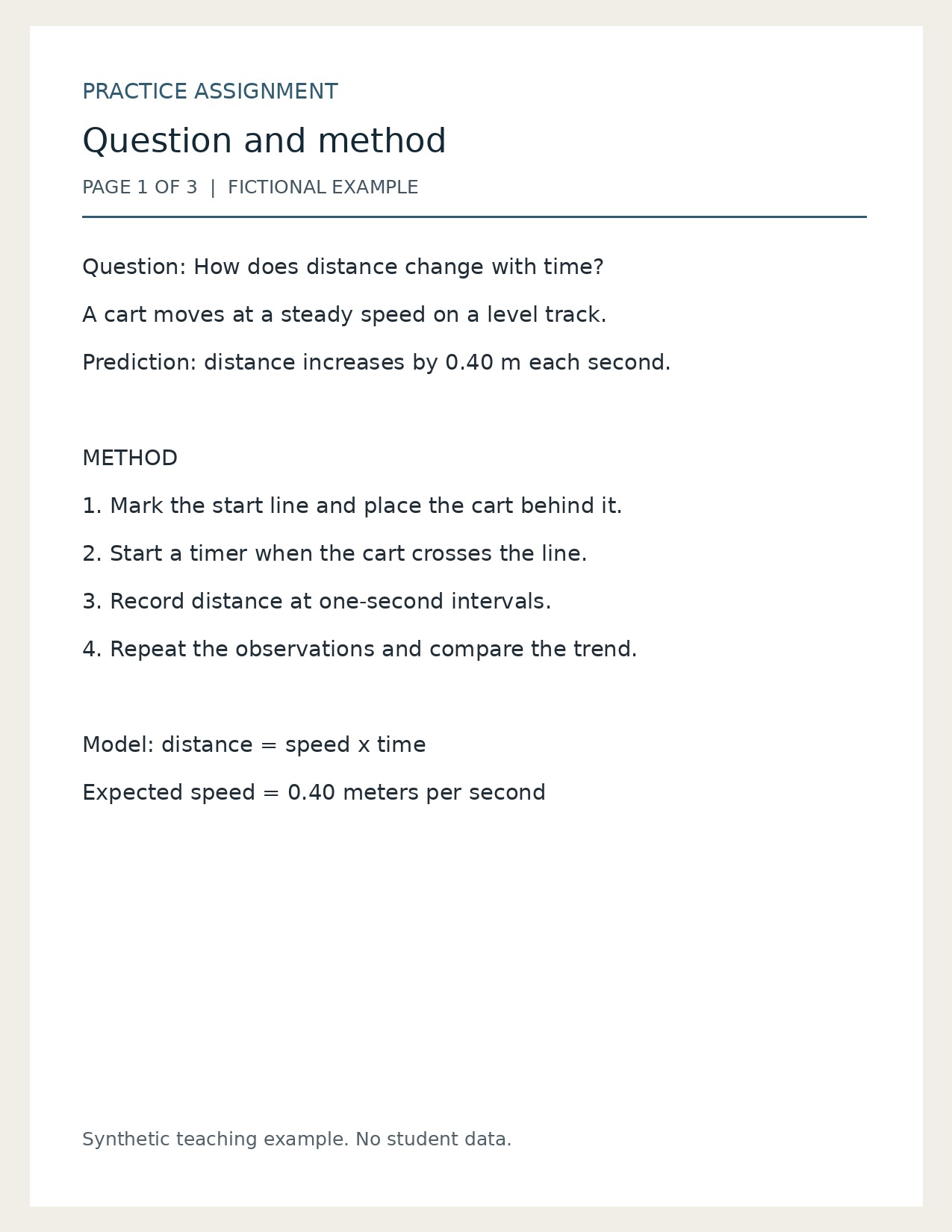
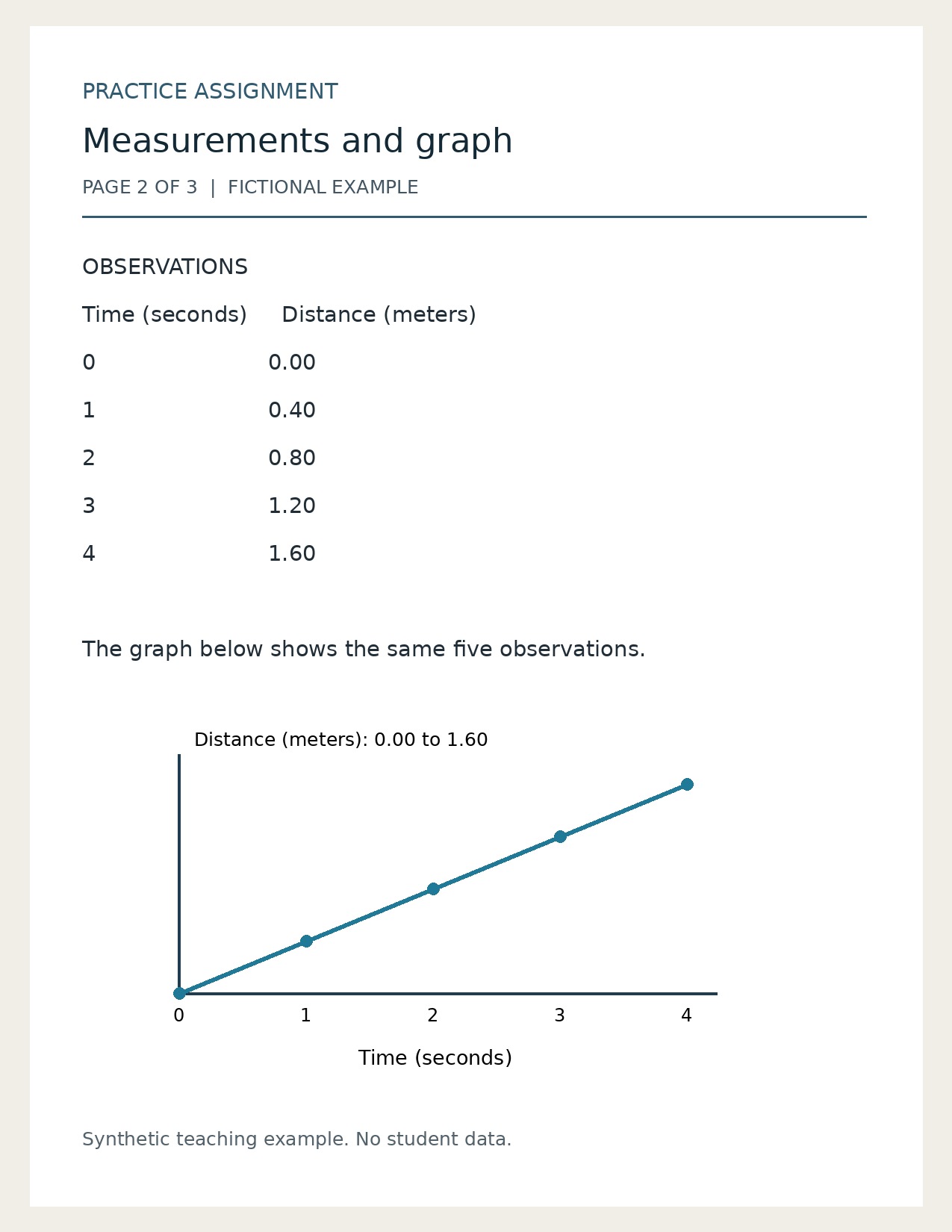
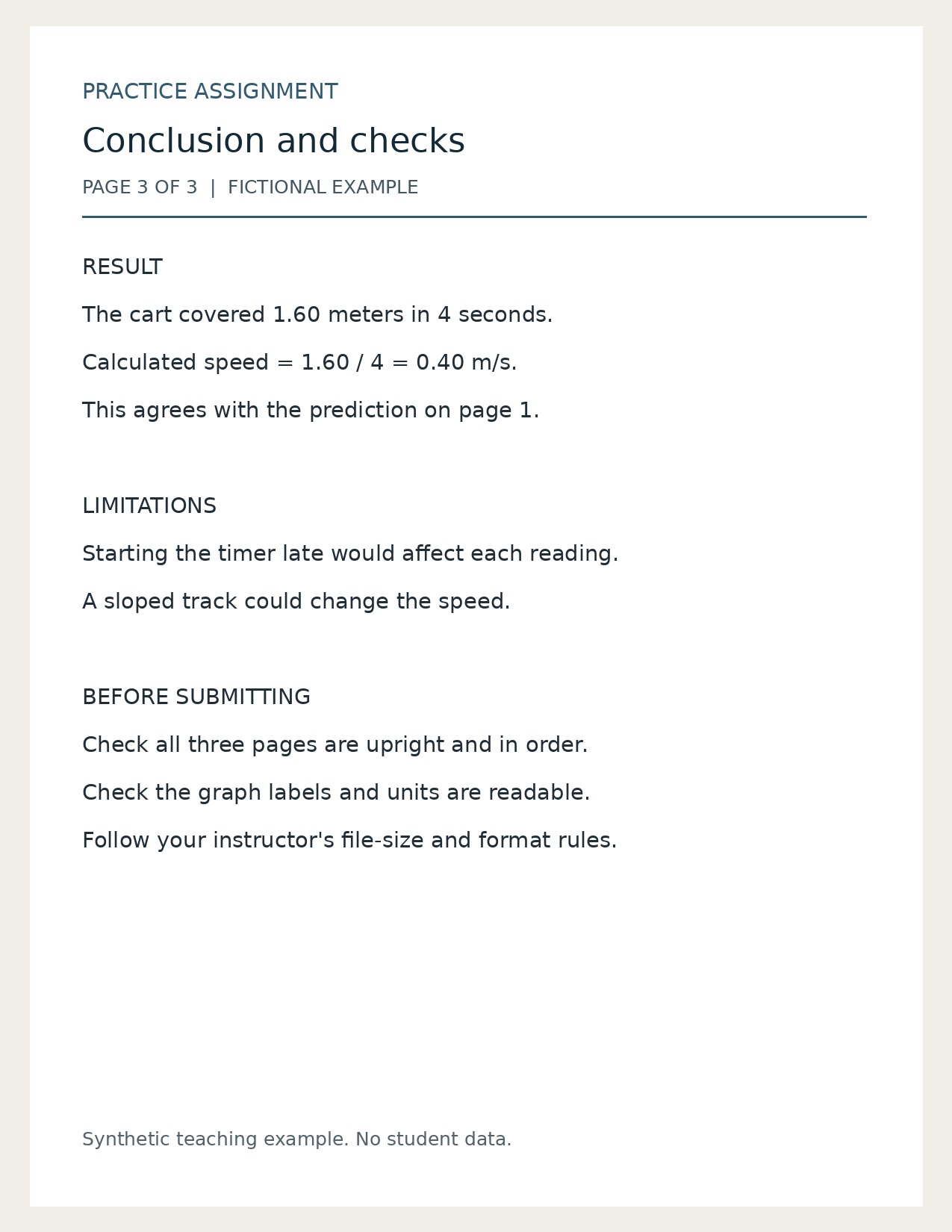
The downloads below include a short guide, three ready-to-use JPGs and a reference PDF. The pages describe a fictional cart-motion exercise: question and method, measurements and graph, then conclusion and checks. They contain no student data and are not a real course assignment.
Add IMG_7310.jpg, then IMG_2050.jpg, then IMG_0902.jpg. Use the settings above and compare your saved output with assignment-ready.pdf. Look for three Letter pages in the order 1–2–3, an upright graph on page 2 and the complete conclusion on page 3.
The reference PDF is 456,952 bytes, about 446 KiB. That size describes this example only; your photos will produce a different file size. You do not need to match the sample byte for byte to check that your own pages are complete and readable.
A photo PDF still contains pictures of text
This conversion does not make the words in the photos selectable or searchable. It does not add an accessible text layer. The sample PDF is image-only, even though its text looks clear on screen.
W3C’s PDF7 guidance explains why images of text need additional work to provide actual text. OCR, when used separately, also needs review for recognition errors and reading order. No accessibility conformance is claimed for this example. If your course requires accessible or searchable text, ask which format and workflow meet that requirement before submitting.
What was checked for this example
The workflow was source-reviewed on November 14, 2026. A local test of StackPDF’s image conversion helper produced the reference PDF with three 612 × 792-point Letter pages. The embedded JPEGs matched the three input files byte for byte and in the intended order. Rendered pages were visually checked for legibility, orientation and clipping.
These were local helper tests, not a complete website test or a real assignment submission. They do not establish current account allowances or course acceptance. This is an independent StackPDF practice resource, with no university affiliation or endorsement.
Download the practice files
All example pages are fictional. The JPGs and reference PDF are image-only practice materials; the guide explains how to prepare and check them.
- Two-page assignment photo guide (PDF, 617,231 bytes)
A printable workflow and final-file checklist.
- Page 1: IMG_7310.jpg (JPG, 166,263 bytes)
Question and method. Add this image first.
- Page 2: IMG_2050.jpg (JPG, 128,354 bytes)
Measurements and graph. Add this image second.
- Page 3: IMG_0902.jpg (JPG, 160,619 bytes)
Conclusion and checks. Add this image third.
- Reference output: assignment-ready.pdf (PDF, 456,952 bytes)
Three Letter pages in the correct order. Image-only; not a submitted assignment.
Put the checklist to work
Start with a tool that matches your task. Browser tools work on your device. Cloud tools have separate availability, consent and Premium requirements; check the tool page before relying on them.
Sources and further reading
These primary references explain the underlying document behavior. They are not endorsements of StackPDF.